Showing posts with label Others. Show all posts

In the past, I have written about how the copy-paste function works in a lot of places even though it may not be ‘advertised’ as a function. The same can be said about the undo function (Ctrl + Z).

For example, you can use this function:

  • in just about any application text box
  • in browser text boxes
  • in find and replace dialogs
  • lots of other places… try it

Unfortunately, many times the remembered undo level is only one deep (this is not always the case though) but this is still better than nothing.

So give the undo function (again, Ctrl + Z ) a try and it may come in handy.

Posted By George September 30, 2009 0 comments

A long while ago, I ran a tip which basically said putting a candy dish near your computer is a bad idea because you will end up munching on it without thinking. So as an alternative to the candy dish, here are some ideas of some stuff you might want to have instead:

  • Nothing
  • Low Salt Nuts (cashews for me)
  • Raisins / Dried Fruit
  • Bananas
  • Peppermints (if you must have something sweet)

Of course, some of these may leave your hands sticky so having a moist cloth nearby might come in handy.

Did I miss something? If your computer snack isn’t listed, please share in the comments.

Posted By George September 29, 2009 0 comments

For some reason the hibernate function is not enabled in either Windows Vista or Windows 7 by default (even if your BIOS supports it). On top this, enabling this power saving feature isn’t as simple as marking a check box.

If you want to make use of this rather nice function then here is how to do it in Windows Vista and Windows 7.

I find this feature especially useful on laptops because it essentially allows you to snapshot your current session and resume from exactly where you left off. Additionally, the bootup time from hibernation is usually much faster than a cold boot.

Posted By George September 26, 2009 0 comments

Sometimes even when you transfer MP3 files to the right MUSIC folder on your Sony PSP or MP3 player, the Sony device won’t be able to play it. It could be a sampling rate mismatch or the bit rate of the file, so often times you need to convert the MP3 file to a bit rate supported by the Sony player.

Sony also promotes its own music player/converter software for free – the SonicStage. With this tool, you can convert the MP3 file to a compatible Sony-native format called ATRAC3.

ATRAC, according to Sony, is an audio compression technology that satisfies the demand for high sound quality and a high compression rate such as one tenth of an audio CD.

Well certainly we don’t want another music format other than MP3, but sometimes for the sake of being able to play them on Sony devices, we need to convert the files to ATRAC format.

SonicStage has an easy to grasp interface. You can add music files to it by simply dragging the files to the “My Library” section. It can automatically tag your files with its integrated Gracenote service so you won’t have to manually do it.

image

To convert a regular MP3 file to ATRAC3 format, right click the file then choose Convert Format

image

Choose ATRAC3 or ATRAC3plus (depends on what your Sony device could support so experiment between the two formats first before doing a batch of files):

image

To verify if you have converted the file, right click the file, choose properties then go to the file info tab. You should see that there are two file file formats saved on different locations.

image

Make sure to have room for the newly converted files on your hard disk. I prefer to keep the original files just in case I need to play the files in a non-Sony device like my iPod.

If you can not play your music files on a Sony device, try to convert the file first before transferring – this will re-encode the MP3 file with format supported by your device. I have a similar Sony Network MP3 player like the one below and the steps I have shown above are what I usually do to make the files play using this player.

image

Posted By George 0 comments

Finally, yesterday AT&T turned on the MMS functionality for iPhones! This is really great because now you can send pictures and videos in a message. So how do you enable the new MMS feature on your iPhone?

Follow the instructions below to get MMS working on your iPhone. First, connect the iPhone to your computer and let it finish a sync or backup.

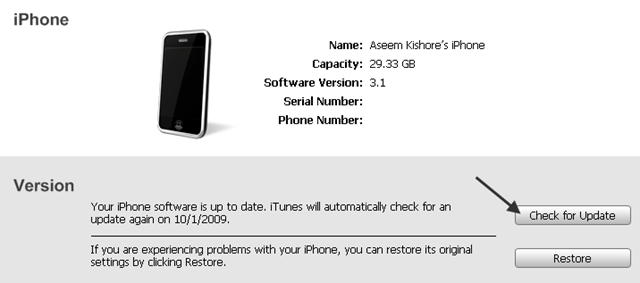
Now on the Summary screen, click on Check for Update.

enable iphone mms

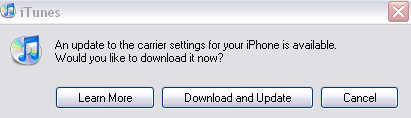
You’ll get a pop up message saying that there is a carrier settings update. Go ahead and click Download and Update.

enable mms iphone

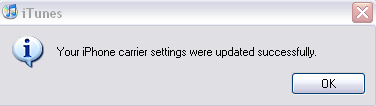
The download and update process takes just a few seconds to complete, so there’s not much waiting!

turn on mms iphone

Once you get the message that the iPhone carrier settings were updated, you need to turn off your iPhone and turn it back on for the new MMS feature to be active.

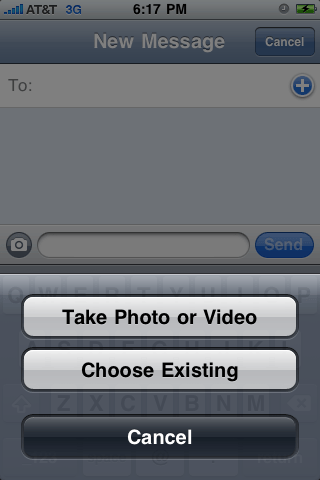
Now when you go to create a new message, you’ll see a small camera icon at the bottom left (above the keyboard).

IMG_0109

Click on the camera icon and you’ll have the option to choose an existing photo/video or to take one immediately. Note that only the 3GS will have the option for video.

IMG_0110

That’s it! Now MMS is enabled on your iPhone and you can start sending multimedia messages to your friends and family! Enjoy!

Posted By George 1 comments

With word processing applications there are two types. Those that are too big and full of stuff you’ll never use, and those that are so minimal that most people can’t work with them.

In the “too much” department, Microsoft Office, OpenOffice and Lotus Symphony come to mind. These are all full suites.

In the “not enough” department there is Google Docs, Dark Room, WriteRoom, AbiWord and a few others.

Then there’s Jarte. This word processor utilizes the existing WordPad engine in Windows, yet adds a whole bunch of stuff that makes this a truly good program to write things in.

Jarte to most people will look ugly and the interface may throw you off. However once you start actually using it, you’ll find that the way things are laid out are done in a way that makes sense. For example, Jarte has tabs. Tabs? Yes! And they work great. Jarte makes it super-easy to insert special characters like ä or é. Jarte will open both DOC and DOCX (the newer MS Office 2007 format). Jarte will export HTML and/or PDF. This software has it where it counts.

Best of all, Jarte is super-light. The installation file is a tiny 5MB, launches faster than your Word or OpenOffice ever will, and has a feature set which falls into the “just right” department.

Jarte is not a replacement for MS Word or OO Writer. Not by a long shot. But heck, a 5MB feature-rich word processor that will run local or USB stick and uses an existing engine for lightning-fast operation? That’s tough to beat.

Jarte will work on versions of Windows from 95 all the way to 7. How’s that for compatibility?

See video below for details and visit www.jarte.com to download and try it for yourself.


Posted By George September 23, 2009 0 comments

In recent years web browsing has become a rather CPU intensive task. The javascript used for scrolling menus, Flash based ads and other (usually) unnecessary junk running behind the scenes on certain websites, can put your CPU to the test. Of course, whenever your CPU spikes it has to pull more energy which produces more heat which, for laptop users, can drain the battery much quicker than if this stuff was not running.

You can help prevent this by taking advantage of a script blocker, such as Firefox’s NoScript add-on.

SecTheory.com took a notebook PC, a couple of browsers and measured the battery drain on the Top 100 Alexa sites. They then took the worst offenders, that is, the ones that took the most power drain, and blocked script and ads using NoScript and AdBlock Plus. The results were quite significant. On a Dell Inspiron B130 notebook, with a 1.5GHz Celeron M processor and 1 Gig of ram, running fully patched Windows XP SP2, the power consumption when browsing the worst offending sites dropped by 11W, a 20% reduction.

These are pretty impressive results. Granted, it does take a bit of time for your white list to get caught up to where you don’t even notice a script blocker is running, but investing a little time can really impact battery life if you do a lot of browsing… especially on ‘intensive’ sites.

Posted By George 0 comments

Alliteration aside, the most popular firewall program I see recommended on this site, outside of the one built into Windows, is Comodo Firewall. While there is certainly nothing at all wrong with it, if you are looking to explore alternatives then PC Tools Firewall Plus is worth a look.

PC Tools Firewall Plus is advanced technology designed especially for people, not just experts. Powerful prevention against attacks and known exploits is activated by default while experienced users can optionally create their own advanced packet filtering rules, including IPv6 support, to customize the network defenses. All you need to do is install it for immediate and automatic ongoing protection.

Basically, everything you would expect to find in a firewall package is there. I imagine the difference between Comodo and PC Tools Firewall Plus would be small if any, so it would boil down to personal preference.

Posted By George September 20, 2009 0 comments

In a rather bold statement, the CEO of Verizon Communications basically said that the company simply doesn’t care about landline anymore.

The statement may be bold but I think we all knew in the back of our minds this was coming. Generally speaking, the only reason anybody has a landline phone today is either because a) it’s required in order to use DSL internet service, b) cell phone reception is not available for whatever reason or c) the internet connection is too slow to handle broadband VoIP properly.

If I asked how many of you out there use your wireless phone as your primary phone, chances are the majority of you would say, "I do!"

If I asked how many of you do have a landline, but it’s through your cable company and not the local Telco, chances are also good the majority of you would say, "I do!" (And in fact I’m one of them.)

Why do so many choose wireless and/or cable over Telco?

The first answer is cost.

For basic communications, a prepaid cell phone is cheaper than a POTS landline.

For business-grade phone service, VoIP offerings from your local cable company or broadband make it super-easy to setup. It also costs less and in many instances can have same-day setup.

The second answer is features.

On a basic POTS line you get absolutely nothing in the way of features – not even Caller ID. With the absolute cheapest prepaid cell phone you can buy you can at least see the incoming number of who is calling you. You also get 3-way calling, voicemail and texting besides that.

You will spend $25 a month (not including tax) in most places for a featureless POTS line. If you were to go with Vonage, that same $25 a month gets you unlimited calling anywhere. And I mean anywhere; it includes international calling to over 60 countries with no additional cost to you.

The third answer is value.

Who in their right mind would go with a POTS landline when you can get so much more stuff with wireless or VoIP that’s actually useful for the same price?

At this point the only thing keeping POTS around is the fact that broadband and wireless isn’t available everywhere in the US. In fact there is a study going on right now being paid for by the US government in an attempt to find out what our broadband reach is – because to be honest nobody knows the true answer to that at present.

Posted By George September 19, 2009 0 comments

If you’ve ever created a website before, you know how important it is to get opinions from as many people as possible on colors, layout, navigation, content, and everything else.

Even though it’s really easy to create a website, it’s really hard to make a great website. Anybody can download a template and have a flashy looking website in minutes, but then it’s not unique.

If you’re creating a new website for your business or you routinely create websites as part of your daily job, you might want to check out a cool web service that lets you get feedback on website design, content and code quickly and easily.

Notable is an online tool built for business-design teams to help create effective websites. Basically, it lets you capture screen shots of websites and then lets you annotate features such as copy, design, and even code that needs tweaking.

provide feedback websites

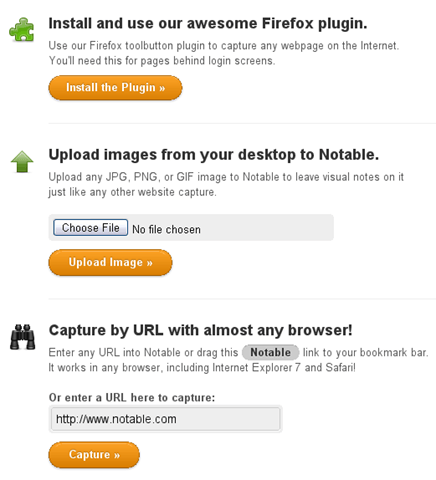
Currently, the service is in beta, but they will be open to the public soon. In any case, once you sign in, you can capture a webpage by either installing a Firefox plugin, uploading an image from your desktop or capturing a URL using their capture utility.

notableapp

Once you capture a page, you can click the Add Notes button and begin adding annotations to the screenshot. Across the top, you’ll see three tabs: Screenshot, code and copywriting. You can add notes to any of these.

add notes to website screenshot

As you add notes, you’ll be able to see them by the addition of the number in a black circle. When you hover over the highlighted area like I did above, then you see the note that was added.

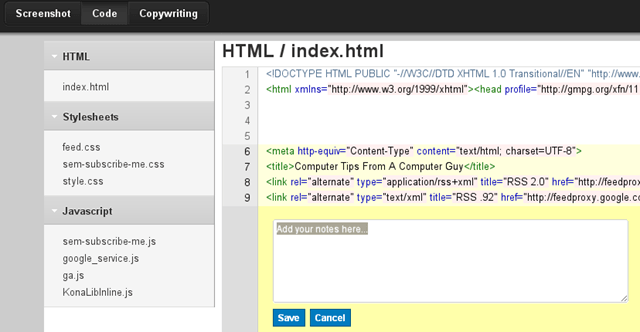
To add notes about the actual code, click on the Code tab and then select the code that you want to add annotations too. What’s cool is that it automatically picks up the CSS files and all JavaScript files when you capture a screenshot of a website.

add annotations to code

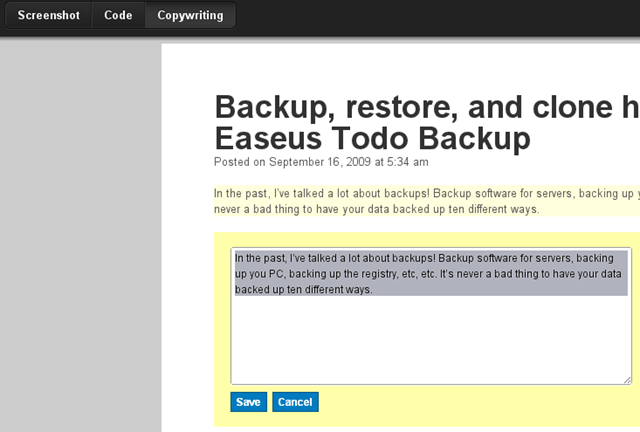
When you click on Copywriting, you get just the text of the webpage and nothing else. All links, pictures, and images are removed. Here you can add notes about the actual content of the webpage.

add notes about webpage

If you have a large project that has lots of pages for the website, you can create a Workspace to help organize the project. Then you just capture more web pages like before, but now you can also add people so that they can collaborate on the feedback.

Posted By George September 17, 2009 0 comments

Today’s tip is specifically for developers, system administrators, tech support people, etc. who utilize Microsoft’s SQL Server. While SQL Server is incredibly powerful and the provided Management Studio (Express for the free edition) is an excellent tool, a function which is missing is the ability to search all tables in a database for a text value.

While this can be accomplished quite easily via a simple query if you know the tables you want to search, but what about searching the entire database? If this sounds like something you need, check out this script. I have used it quite a bit and it works very well.

Basically, you just copy the procedure and run it in the database you want to search to create the store procedure. Then run the stored procedure like you would any other. Of course, this can take some time depending on the size of your database, but overall it accomplishes exactly what it says. The author has tested this on SQL 7 and 2000 and I have personally used this on SQL 2005, so I don’t see any reason this would not work on SQL 2008 as well.

Posted By George September 15, 2009 0 comments

This theme is just a concept. I’d love to have this made reality.This took me roughly 2 hours in photoshop to perfect. I still don’t know if the arrow color would be a different color (either white or blue), and if the font should be blue.

I don’t know how to really make themes, so if someone could send me a guide, or tell me what program I need to make an MSSTYLE, or hell, even make this theme in collaberation with me, I’d love it! I’d supply any images required if someone wanted to make this into reality.

I want this theme for Windows XP and perhaps Vista as well, and maybe even 7. In XP the bar would be white, but I’d include a guide as to how to turn it transparent. (I use a program called TransBar to make my taskbar in XP appear transparent, it’s a great, small utility.) I might even be ableto find something that lets people use Gauessian Blur online so as to make the “Aero” in XP appear more realistiic (excect for on windows, still need to find a way to make just the outline of those transparent.)

Let me know what you think, and tell me any improvements you think could be made!

Time: Roughly 2:30 on a 1024×600 Netbook. (Definatly not easy, especially in a car.)
Tools: Photoshop CS3 Extended.

Homepage: http://revengexx14.deviantart.com/

Posted By George September 14, 2009 0 comments

Windows Vista users, if Service Pack 2 hasn’t hit your Windows Update yet it probably will very soon. So if you are curious about what is in this upgrade, here are the full details from Microsoft.

Overall, there is nothing really to get excited about for home users (in my opinion at least). A few notable changes:

  • SP2 improves performance for Wi-Fi connections after resuming from sleep mode.
  • SP2 integrates the Windows Vista Feature Pack for Wireless, which contains support for Bluetooth v2.1 and Windows Connect Now (WCN) Wi-Fi Configuration.
  • SP2 removes the limit of 10 half open outbound TCP connections.

Of course, SP2 rolls up all the previous hotfixes as well which is convenient if you have fallen behind on your updates.

I am going to upgrade my work machine sometime this week when I go home for the night. Has anyone else already installed Vista SP2 and if so, what was your experience?

Posted By George September 12, 2009 0 comments

Get updates via email